Missing data in EthoVision XT
Last updated: Nov 07, 2025
Troubleshooting Missing Data in EthoVision XT
Missing data may result from suboptimal video, camera, or detection settings. Indicators include:
- High values for Missed Samples, Interpolated Samples, or Subject Not Found
- Gaps in integrated visualization graphs
- Gray segments in the track visualization
- Total arena time is less than trial duration
- Dashes or asterisks in the Track Editor sample list
Checking for Missing Data
Counts for Missed Samples, Interpolated Samples, and Subject Not Found appear at the bottom of the Detection Settings and Acquisition screens. High values appear in red:
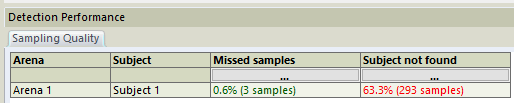
You can also review these values in the Trial List by enabling them via Show/Hide > Variables.
Missed Samples
When Tracking Live
Missed Samples indicate that EthoVision was unable to analyze a frame. This may occur if:
- The camera skipped frames (USB webcams, poor cables)
- Exposure time is too high (especially on Basler cameras)
- The computer cannot keep up with complex tracking tasks (e.g., color detection, multiple animals, high resolution)
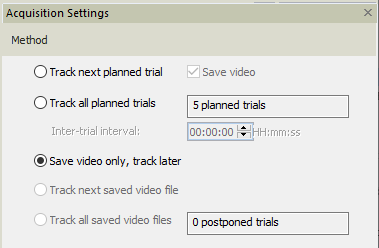
If needed, use Save video and track later during acquisition, then select Track next saved video file afterward:
When Tracking from Video Files
Enable the DDS checkbox in Acquisition for optimal tracking speed:

Missed Samples from video files typically indicate dropped or poorly encoded frames. Always choose fixed frame rates when converting videos.
Interpolated Samples
When Dropped Frames Correction is enabled, EthoVision will interpolate missed samples:
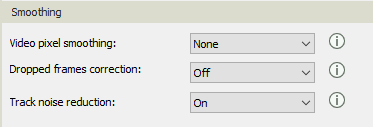
This is acceptable if interpolation remains below 1%. High values should still be addressed by improving underlying camera or detection performance.
Subject Not Found
This occurs when EthoVision cannot locate the animal. Causes may include:
- Animal is physically missing or hidden (e.g., inside shelter)
- Detection settings are inadequate
Note: Every Missed Sample also generates a Subject Not Found entry.
Fixing Minor Missing Data
Interpolation in Track Editor
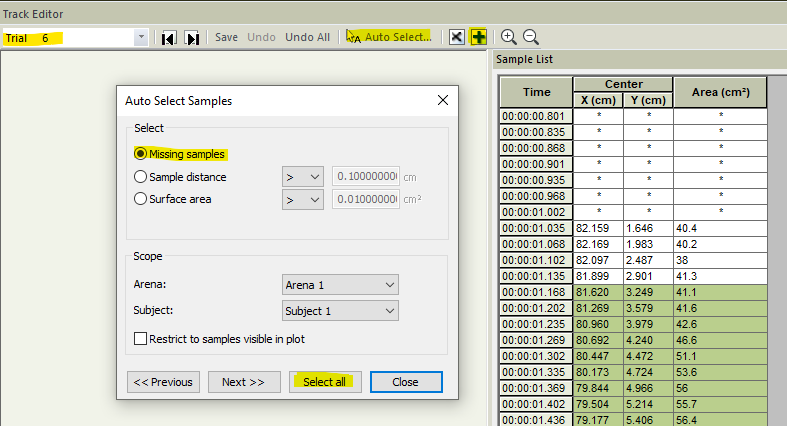
- Go to Track Editor under Acquisition.
- Select a trial from the upper-left menu.
- Click Auto Select > Missing Samples > Select All.
- Click Interpolate Selection (or press Ctrl+I).
Note: Interpolation cannot be applied to the very first or last frame, or to asterisks indicating data before trial start.
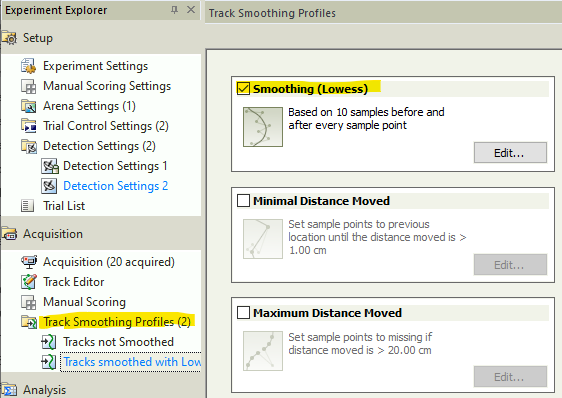
Track Smoothing
Track Smoothing averages data using surrounding points and fills in short gaps. Enable this in the Track Smoothing Profile. Effects can be toggled on/off easily:
Redoing Trials
If a large portion of data is missing or detection is poor, it may be best to retrack the video. See: Redo a trial in EthoVision XT