Configuring the Epiphan Broadcaster in FaceReader
Last updated: Aug 24, 2026
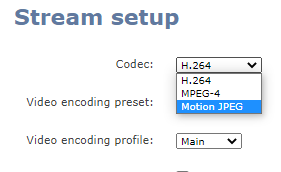
In order to stream screen capture with an Epiphan Broadcaster in FaceReader, the screen codec for the Broadcaster must be changed from H.264 to Motion Jpeg.
- Connect to the Epiphan admin page with a web browser, by entering the URL http://<ip address>/admin. The username is "admin", and the password may be left blank (unless you have configured it otherwise).
- Click on the Stream Setup in the menu down the left side of the screen.
- At the very top there is a codec setting with a drop down window. Select Motion JPEG.
- Scroll all the way to the bottom of the page and click Apply.
- Click on Info and you will see under streaming info the URL to the MJPEG stream: http://<ip address:1881/stream.mjpg.
- Copy the URL to your notepad and open FaceReader.
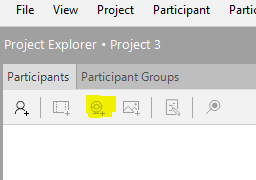
Next, in FaceReader, after creating a project and participant (if you don't have one already), click on the camera icon to choose your camera:
In the drop down menu, select "IP Camera." Insert the source URL you got from the info page of the Epiphan web page. Change the frame rate to 15 and click on Mjpeg:
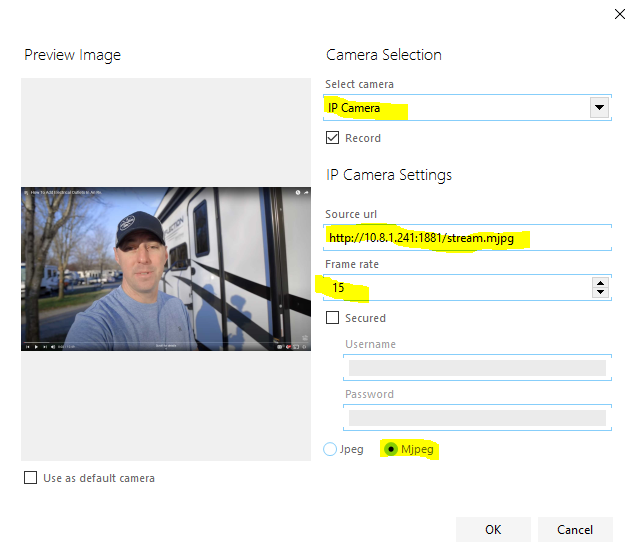
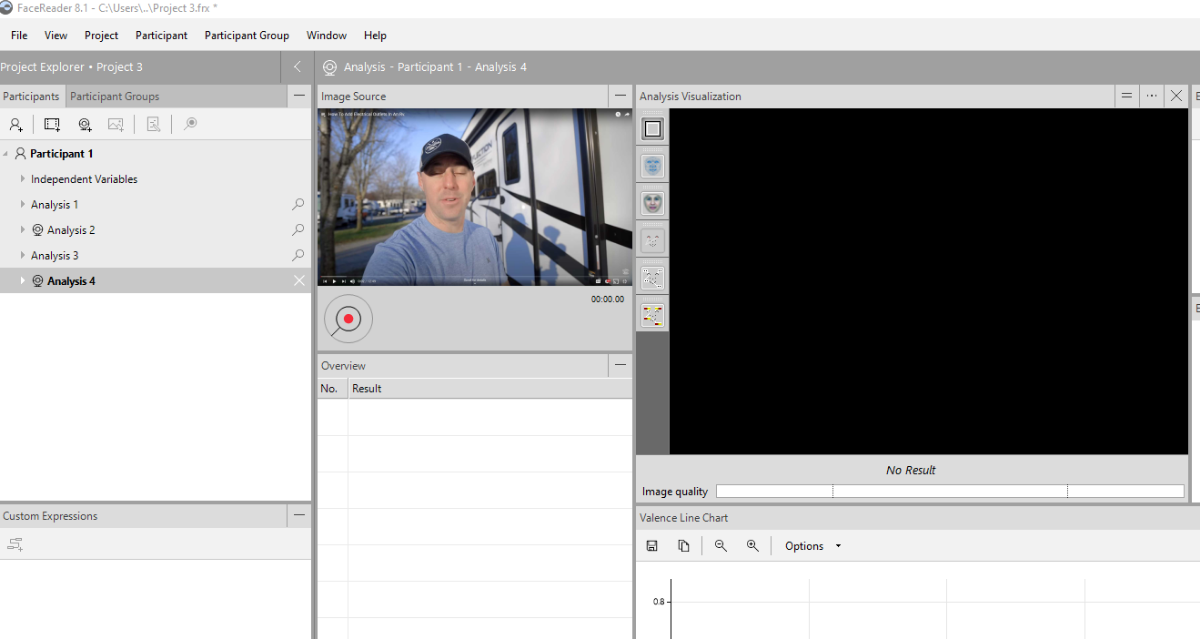
Click OK and the analysis will open, showing the video you are feeding the Broadcaster.