RTLS Studio not storing location and/or sensor data
Last updated: Aug 24, 2026
There are several possible scenarios which may result in RTLS Studio stopping the recording of location and/or sensor data.
- The Sewio PC ran out of disk space (for the database)
- RTLS Studio applications might not be running correctly
- Storing of data was disabled for RTLS Server
- Upper limits for database constraints have been reached
Below the scenarios are worked out in (possible) solutions.
The Sewio PC ran out of disk space (for the database)
Verify if there is enough free disk space for the system. This can be done through the following steps:
- Open a web browser and go to http://192.168.225.2
- Login with username "sewiortls" and password "sensmap"
- Go to the menu and then go to "RTLS Monitor"
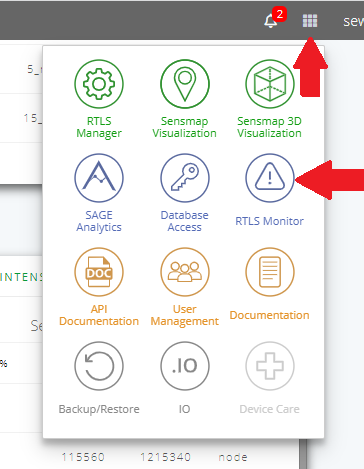
- Scroll down to the section "Disk Partitions"
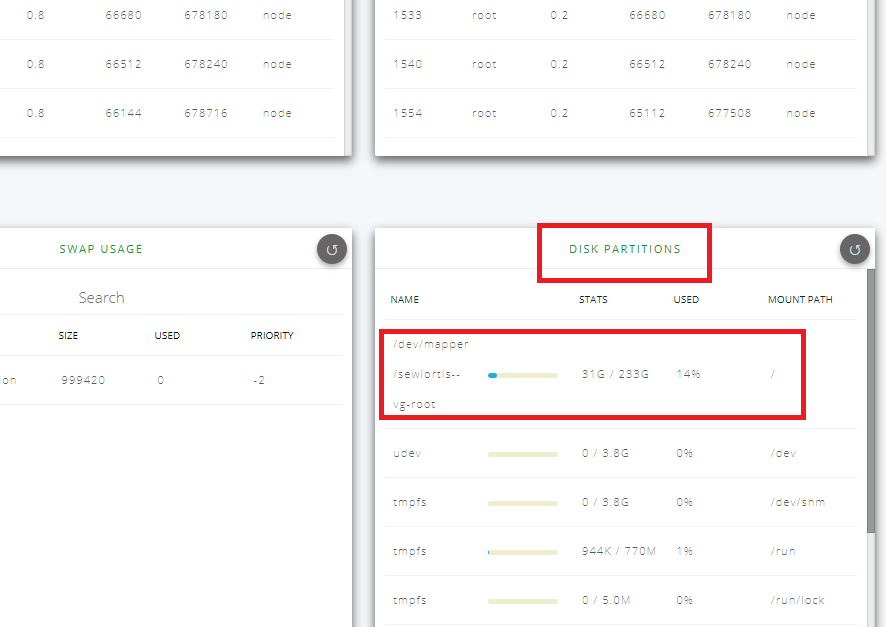
- Verify that there is still enough free disk space (>= 1GB) for "/dev/mapper/sewiortls--vg-root" (red encircled). If not, contact [internal Noldus support]
RTLS Studio applications might not be running correctly
Verify that all RTLS Studio applications are running by taking next steps:
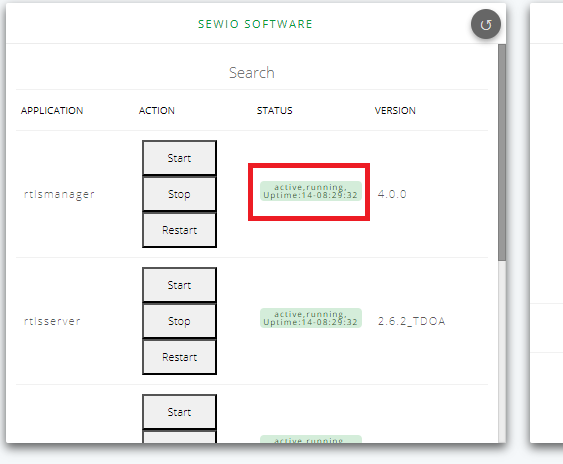
- In "RTLS Monitor" scroll up to "Sewio Software"
- Verify that all applications are "active, running" (red encircled). If not, try restarting the PC. If that didn't solve the problem contact [internal Noldus support]
Storing of data was disabled for RTLS Server
Storing of location and/or sensor data in the database can be enabled/disabled in RTLS Server. Verify it is enabled following next steps:
- Go to "RTLS Manager"
- In the menu on the left open the settings for "RTLS Server"
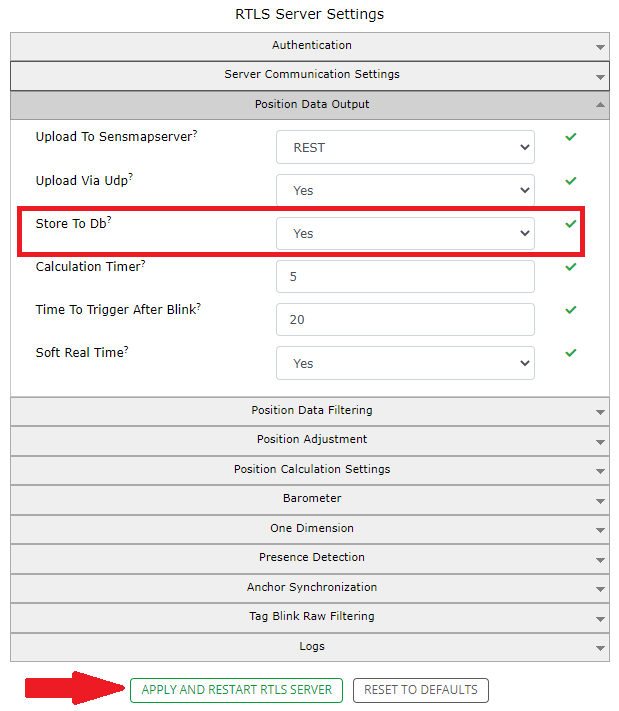
- Go to "Position Data Output"
- Verify that the setting "Store To Db" is enabled. If not, enabled it and press "APPLY AND RESTART RTLS SERVER". Wait for the confirmation message
- Verify that RTLS Studio is storing data again
Upper limits for database constraints have been reached
RTLS Studio uses a MySQL database as storage backend. RTLS Studio doesn't do automatic house keeping, which means that the database eventually will run out of free space. This doesn't mean disk space, but rather it reached the upper limit for a constraint. Take the following steps to find out if this is the case:
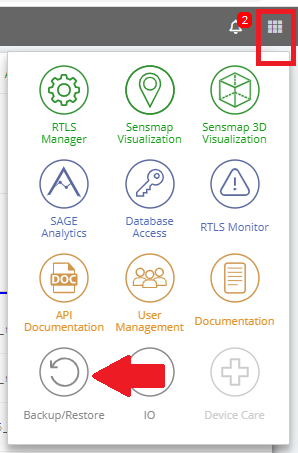
- Go to the menu and then go to "Backup/Restore"
- Go to "RTLS Database"
- Verify that the values encircled in red are either smaller than 2147483647 (32-bits signed integer for the old database schema) or smaller than 263 (64-bits signed integer for the new database schema). In case of doubt, contact [internal Noldus support]
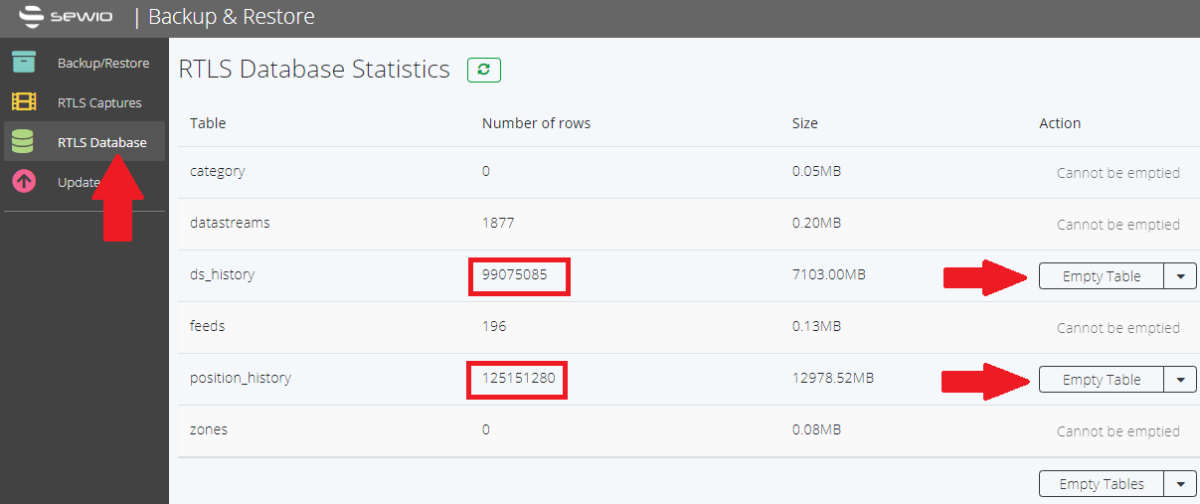
- If the values do match either specified upper boundary, press the corresponding button "EMPTY TABLE".
Note 1: emptying the table will permanently remove all data in the table and cannot not be accessed anymore. This is however by far the fastest method to cleanup the table.
Note 2: using the drop down function of the button allows to specify a time period for data that should be removed. However:- this leads to increased disk space usage
- it also puts a lot of pressure on the database as the engine creates a backup of the entire table before removing the data
- it can be extremely time consuming (e.g. multiple hours or days)
- it could also lead to running in the scenario where there is not enough free disk space left which then would fail emptying the table and one might get stuck in the middle.