Toolbars in EthoVision have disappeared
Last updated: Aug 24, 2026
EthoVision XT 10 and older
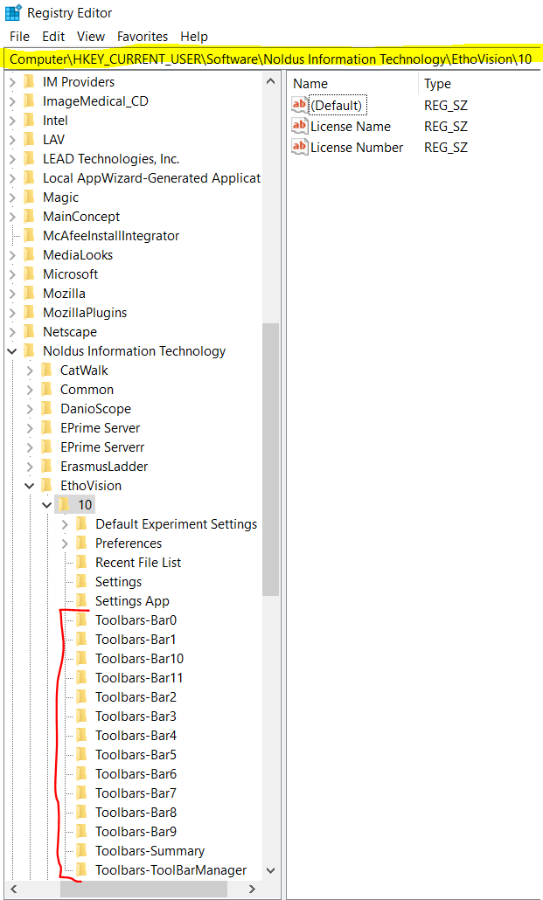
Alternatively, close EthoVision, go to the Start menu, click Run and then type "regedit" in the box and click OK. This will open the registry editor. In the panel on the left side, click the + signs to open the entries for:
\HKEY_CURRENT_USER\Software\Noldus Information Technology\EthoVision\x\
Note: “x” above equals your version number
Indented under "x" will be a number of entries, many of which have names beginning with "Toolbars". Right-click on each of the ones with a "Toolbars" name and pick Delete. Close the registry editor and then open EthoVision. It will recreate those entries with default settings, which should set the menu(s) back to normal.
For example, in EthoVision XT 10:
EthoVision XT 11 and newer
Close EthoVision and go to the location of the problematic experiment’s folder. By default, it will be located in C:\Users\Public\Documents\Noldus\EthoVision XT\Experiments. If not located in the default location above and you’re not sure where it is located, re-open your experiment in EthoVision and go to the Experiment Settings. The location of the experiment will be shown at the top.
Once the location of the experiment is known, close EthoVision, use the File Explorer to navigate to that location, and open the experiment’s folder. It should look something similar to the image below (please note there may be slight variations in the appearance depending on your version and the experiment itself):
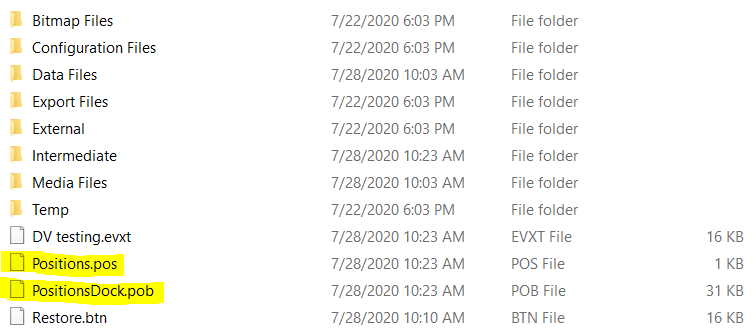
Delete the highlighted files (.pob and .pos files) by either right-clicking on each and selecting “Delete” or highlighting each one and press the “Delete” key on your keyboard. The locations of toolbars in EthoVision are stored in those files so deleting them will reset them to the default positions. Once deleted, close the File Explorer and re-open your experiment in EthoVision to see if the issue is resolved.