EthoVision XT file error Id 10034 Experiment cannot be repaired
Last updated: Nov 07, 2025
This error may state: “EthoVision has detected some experiment inconsistencies.” It typically occurs because necessary files are missing or the experiment file is damaged.
Files Missing or Out of Place
The most common cause is that you do not have the entire experiment folder. If you only have the .evxt file, please note that this file alone is not sufficient to open an experiment. The .evxt file acts as an index and does not include tracking data or configuration files. You need the full folder that contains this file—usually named after the experiment.
Here is an example of what a complete experiment folder looks like:
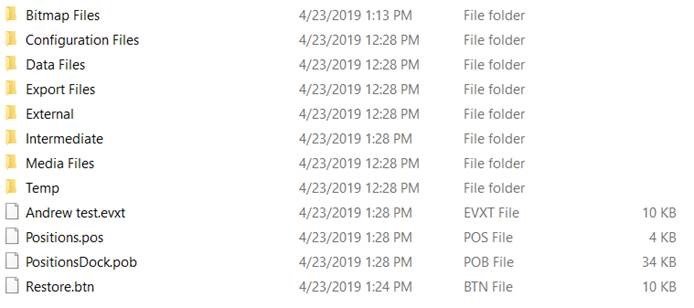
When the .evxt file is in the folder with all required subfolders and files, the experiment should open correctly. If those files are missing, the software will return an error.
Folders Lost in a ZIP or Compressed Folder
When compressing and transferring experiment folders, Windows may omit empty subfolders during extraction. EthoVision expects these folders to exist—even if they are empty.
Missing folders, such as External/SyncOut or subfolders under Configuration Files, may be recreated manually or copied from a working experiment folder.
Preventing File Loss
Instead of manually copying or zipping folders, use EthoVision's built-in backup system:
- Open the original experiment in EthoVision
- Go to File > Make Backup
- This will create a
.evzfile (EthoVision backup)
You can choose to exclude video files to reduce the file size. On the receiving computer, use:
- File > Restore Backup
This will correctly rebuild the entire experiment structure, including any necessary empty folders.
Experiment File is Damaged
If all files are present, the .evxt file itself may be corrupted. EthoVision creates an automatic backup which you can restore manually:
- Go to the experiment folder
- Rename your existing
.evxtfile (e.g.,my_experiment.evxt.old) - Rename the file
restore.btnto match the original experiment file name (e.g.,my_experiment.evxt)
Note: If file extensions are hidden:
- In Windows 10: Open the folder, go to the View tab, and check File name extensions
- In Windows 7 or 8: Tap Alt to show the menu, then go to Tools > Folder Options > View, and uncheck Hide extensions for known file types
Reverting to the backup may result in the loss of changes made during your most recent session, but older data should be preserved.