Image from my camera is flickering
Last updated: Nov 07, 2025
This issue can occur because fluorescent and LED lighting flashes rapidly at a rate determined by the power frequency. Though imperceptible to human vision, mismatched camera frame rates can result in alternating bright and dim video frames—perceived as flickering.
For reference:
- 50 Hz power (Europe/Asia) → 100 light pulses per second
- 60 Hz power (North America) → 120 light pulses per second
Solution: Alter the Frame Rate of the Camera in Your Noldus Software
Under typical North American lighting, a frame rate of 25 fps may cause flickering. Changing to 30 fps often resolves the issue. However, flickering can vary depending on the dimming level of the lights, so you may need to test several frame rates.
EthoVision XT
In Experiment Settings, adjust the camera's frame rate. Then click the icon below to preview the live image and assess if flickering is resolved:

Live image preview:

If flickering persists, open the Video Settings window by clicking the same icon again, and test alternative frame rates:

Note: It may take a few seconds for the image to update after changing settings.
Important: Once trials are acquired, the frame rate setting becomes locked. If your initial trials were only for testing, delete them to unlock the settings. Alternatively, create a new experiment using:
- New Template Experiment → Custom Template
- Select your original experiment as the template source
This method copies all settings but not trial data. Note that this process can take time if the original experiment contains many trials.
MediaRecorder
In Video Settings, adjust the frame rate for each camera under the Frame rate column. Click Apply to confirm. Review the live preview and repeat adjustments as necessary until flickering disappears.
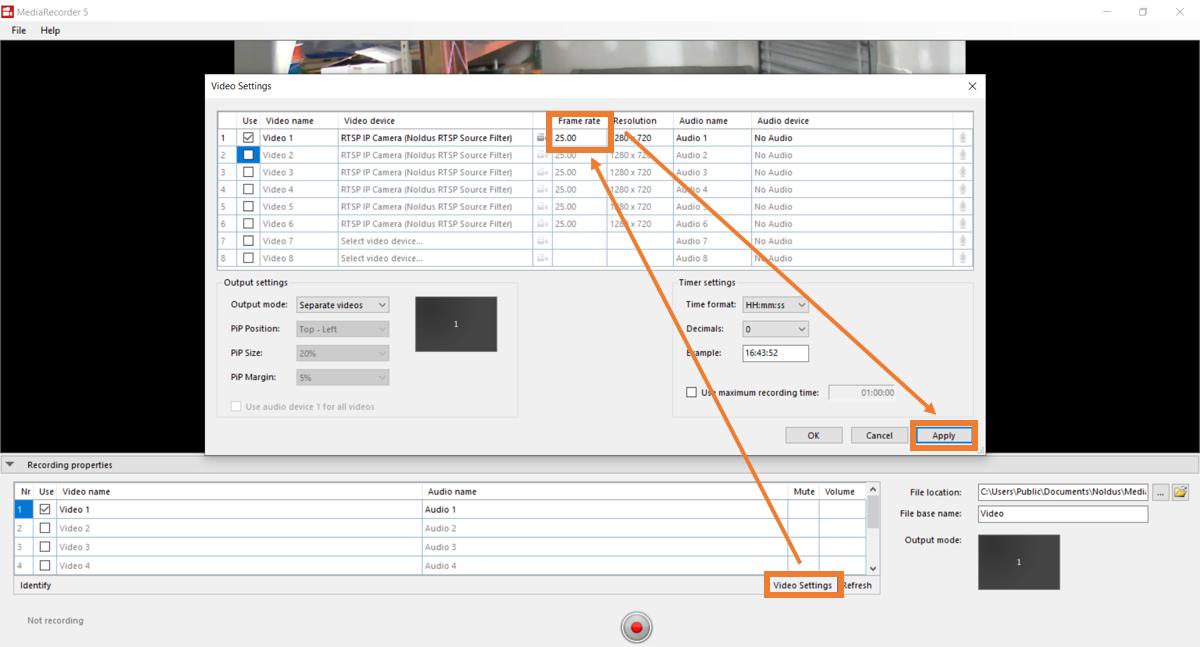
Note: The image will take a few seconds to refresh after any change.