How to change the frequency on a Sennheiser wireless mic solution and automatic sync with wireless mic
Last updated: Aug 24, 2026
Setting the channel and frequency
▷ Select the Tune menu item and call it up by holding down the SET button until the channel selection appears.
▷ Adjust the settings.

▷ Press the jog dial to save your selection.
or
▷ Press the ESC button to cancel the entry without saving the setting.
Synchronizing devices
You can synchronize new 300-500 G4 series transmitters and receivers via the receiver’s infrared interface.
You can adjust the Parameters to be transferred to the transmitter here:
“Advanced -> Sync Settings menu item”.
To synchronize the devices:
▷ Switch the transmitter and the receiver on.
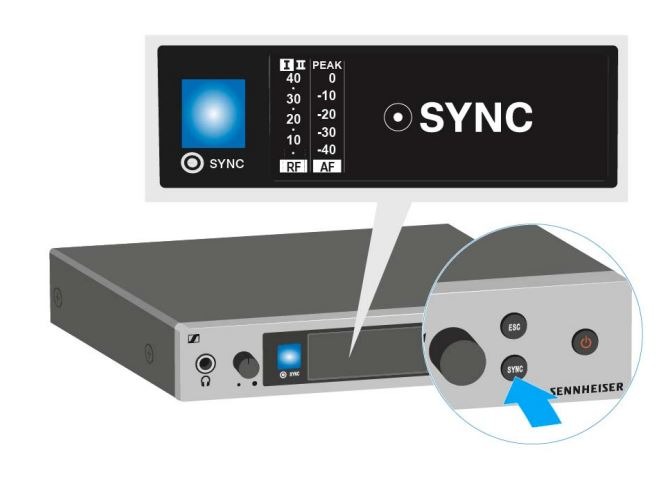
▷ Press the SYNC button on the receiver.
Sync appears in the receiver’s display and the blue LED turns blue.
▷ Hold the infra-red interface of the transmitter in front of the infra-red interface of the receiver.
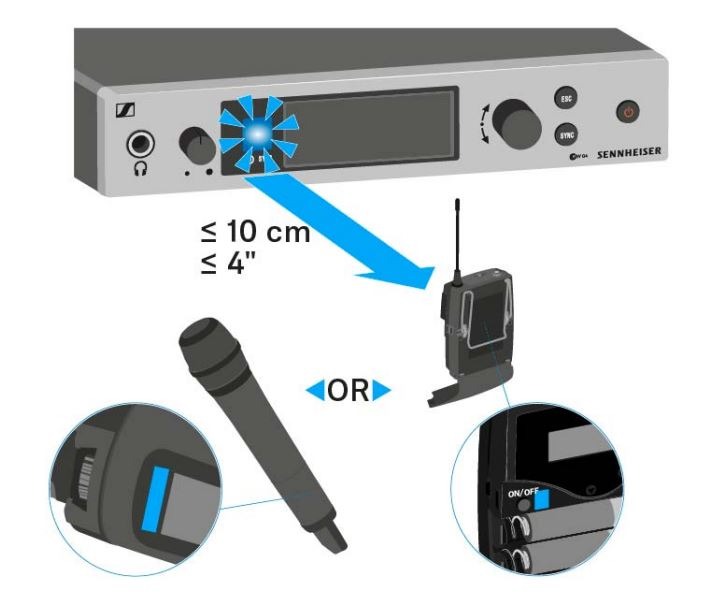
The parameters are transferred to the transmitter. The blue LED blinks during transmission.
When the transfer is complete, a tick appears in the receiver’s display as a confirmation. Then the receiver will return to the current standard display.
To cancel synchronization:
▷ Press the ESC button on the receiver.
An X appears in the display.
This icon also appears when:
• no transmitter is found or the transmitter is not compatible.
• no transmitter is found and the synchronization process automatically ends after 30 seconds.