TrackLab Remote Support & TeamViewer Usage Guidelines
Last updated: Aug 24, 2026
In order to facilitate easy access for Support and updates installation, the TrackLab R&D team have setup TeamViewer access on almost all customer PC’s. By setting up a TeamViewer connection during the TrackLab installation process, we guarantee a swift response in Support scenarios. Some customers have granted us free access. Others we can access only after getting the customer consent.
Instructions:
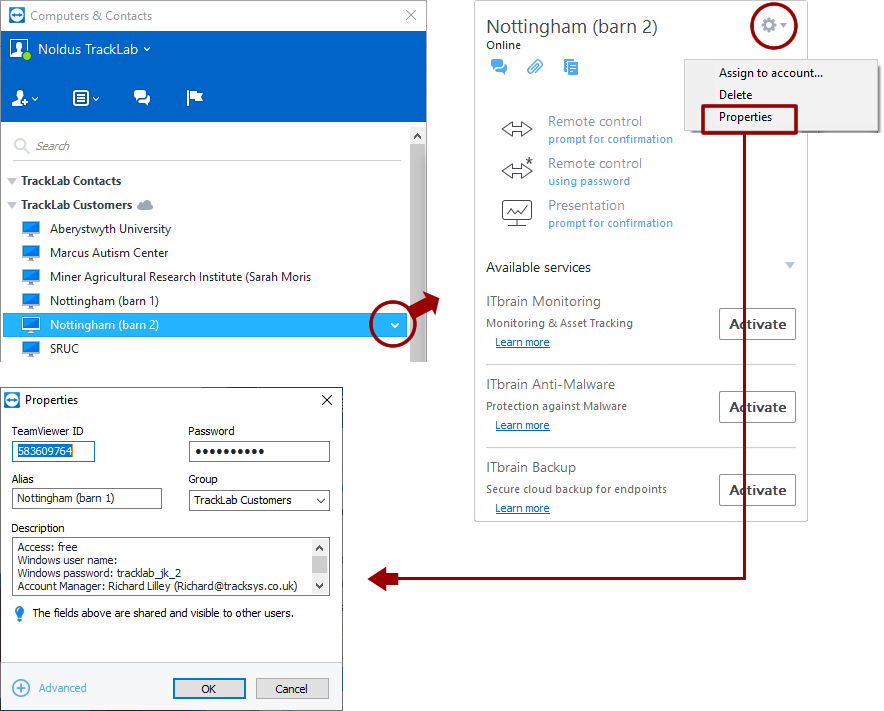
- These instructions are for Support personnel only. See also picture below.
- If the customer PC has no intranetwork connection (wired or wifi) for instance if the tracking site is at a remote farm, recommend the customer to purchase a 4G or 5G data dongle in order to establish internet-based remote access. It is up to the customer to purchase this dongle, since the appropriate dongle solution depends on local service providers and their network coverage. Of course you can help out by providing an exemplary product link.
- For access to customer PC’s, request the R&D team (ask Andrius Zukas or Mike Kelia) to share the “TrackLab Customers” TeamViewer group with you.
- Once shared, you can access a TrackLab customer’s PC through your own TeamViewer account.
- ATTENTION: open the ‘Properties’ window and view the information in the ‘Description’ field to find details such as the PC password and to see if you are allowed to access the PC freely, or that you need to ask for explicit customer consent each time you access it. Note: scroll the field to see all data.
Notes:
- If no fixed/personal TeamViewer password has been set on the customers PC, the password will be automatically reset each time the TrackLab PC is rebooted. This can easily happen, for example in case of a power outage or if the customer switches it off when not recording data. Therefore we need to make sure that a permanent password is set. This should be arranged already upon installation, but if not, here are the instructions: In TeamViewer go to: Extras > Options > Security > Personal password and set and confirm the password. Do NOT select the “grant easy access” option as that would enable password-free access.
- We currently also use TeamViewer access for the installation of TrackLab updates. Be ensured that the TrackLab team are working to enable customers to install updates themselves, in the near future.
- The Sewio PC (Linux) can be accessed through the TrackLab PC. The Sewio RTLS Studio software runs on the Sewio PC but can be accessed through the RTLS Portal on the TrackLab PC. In rare occasions, for instance when certain BIOS settings have to be changed, direct access (or switching on/off) to the Sewio PC may be required. In those cases you may need the customer to help you out.