How can i remove a tracking site that i do not use anymore?
Last updated: Aug 24, 2026
- Prerequisites: (a) you can only remove sites that contain no data and (b) you need to be logged in as administrator.
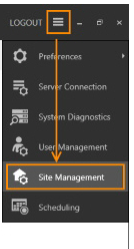
- Open the menu button in TrackLab Viewer and choose the option "Site Management" (see image below).
- In the dialog, select the site you want to discard and click the "remove" button.
- If the remove button is disabled, the site is not active anymore. To reactivate the site, proceed with the following steps:
- Locate the file "connectionsettings.xml" in this directory: "C:\ProgramData\Noldus\TrackLab Recorder\2\".
- Open it by right-clicking it with the mouse and choosing "Open with... Notepad".
- Find the line "<SiteName>Sitename</SiteName>" and replace the name (bold in the example) by the name of your site, as listed in the Site Management dialog.
- Find the line "<SiteSecurityKey>Key</SiteSecurityKey>" and replace the key (bold in the example) by the key of your site, as listed in the Site Management dialog.
- Save and close the connection settings file, restart TrackLab Viewer and open the Site Management dialog to remove the site. Remember to repeat the steps to reconnect another site that you want to record data with.